Export Data
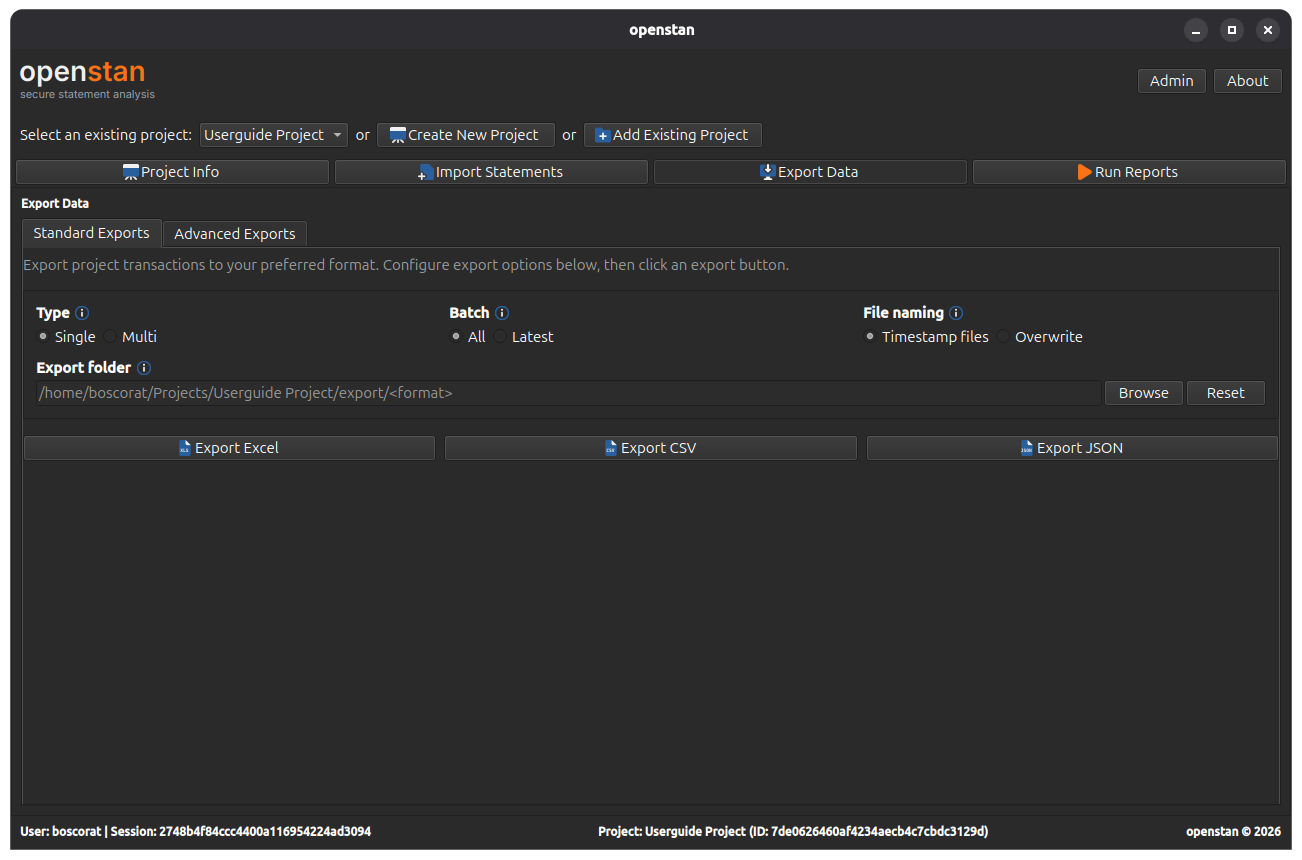
The Export Data panel (Alt+E) lets you export your committed transaction data to Excel, CSV, or JSON using configurable presets.
Placeholder state
If no statements have been committed yet, the panel shows a placeholder message. Import and commit at least one batch first.
Standard Exports tab
Export parameters
Before exporting, configure the following parameters:
Type
| Option | Description |
|---|---|
| Single | Exports a single flat transactions table joining all dimensions. Best for spreadsheet analysis. |
| Multi | Exports separate star-schema tables: accounts, calendar, statements, transactions, balances, and gaps. Best for loading into an external database or BI tool. |
Batch
| Option | Description |
|---|---|
| All | Exports data from all committed batches. |
| Latest | Exports data from the most recently committed batch only. |
Pending batch detected
If you select Latest and the most recent batch has not yet been committed (i.e. it is still in the results panel), openstan will show a dialog asking whether to export the last committed batch or return to review the pending one.
File naming
| Option | Description |
|---|---|
| Timestamp files | Each export run creates new files with a timestamp in the filename (e.g. transactions_20240115_143022.xlsx). Previous exports are preserved. |
| Overwrite | Each export run overwrites the previous files with the same fixed filename. |
Export folder
The folder where exported files will be saved. Defaults to an exports/ subfolder inside the project directory.
- Click Browse to choose a different folder.
- Click Reset to restore the default export folder.
Export format buttons
| Button | Output |
|---|---|
| Export Excel | Writes one .xlsx file per table (Single: one file; Multi: one file per table). |
| Export CSV | Writes one .csv file per table. |
| Export JSON | Writes one .json file per table. |
A progress bar is shown while the export is running. A status label confirms completion or reports any errors.
Advanced Exports tab
See the Advanced Export screen guide for documentation on the advanced exports tab.
Creating custom export configurations
Export behaviour is controlled by TOML configuration files. The bank_statement_parser library handles the underlying export mechanics.
For a comprehensive guide to creating and modifying export TOML config files, see the bank_statement_parser guide on adding a new bank.