Import Statements
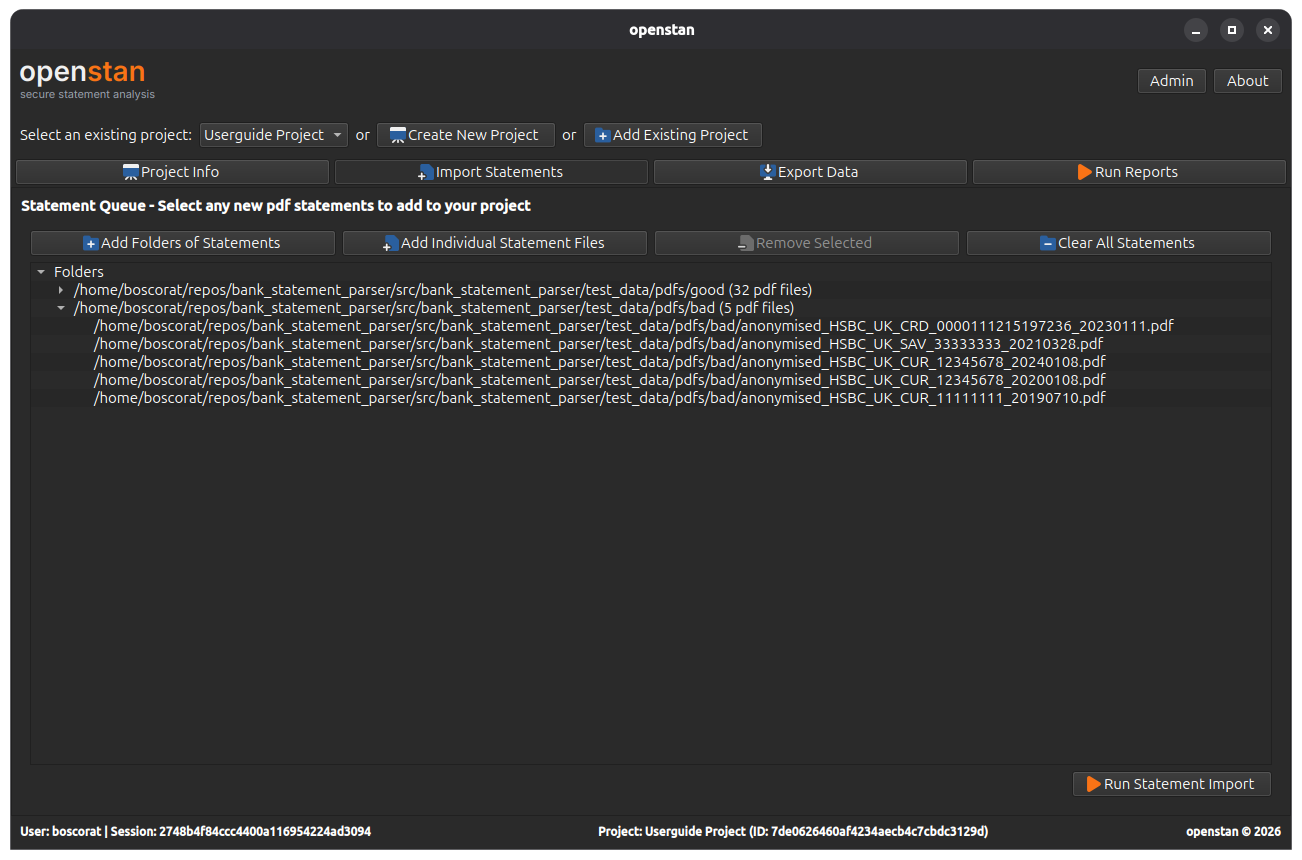
The Import Statements panel (Alt+I) is where you build a queue of bank statement PDFs and run the import process.
Building the import queue
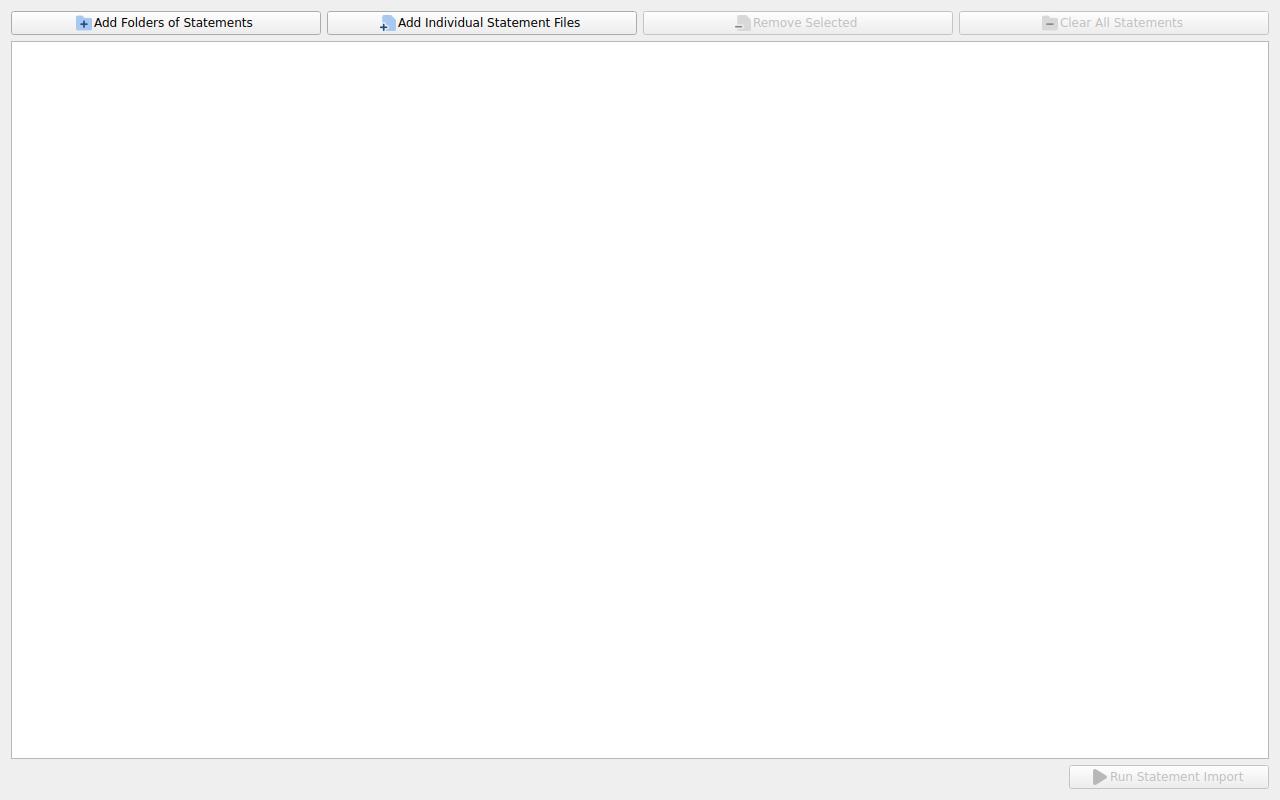
The queue is displayed as a tree. Folders appear as collapsible parent nodes; individual PDF files appear as children.
Adding files
| Button | Action |
|---|---|
| Add Folders of Statements | Opens a folder browser. All PDF files found directly inside the selected folder are added as a group. |
| Add Individual Statement Files | Opens a multi-select file picker. Choose one or more PDF files to add. |
You can add files from multiple different folders in a single queue — each folder becomes a separate group in the tree.
Removing files
| Button | Action |
|---|---|
| Remove Selected | Removes the files currently highlighted in the tree. Select a folder node to remove all files in that group. Enabled only when at least one item is selected. |
| Clear All Statements | Removes every item from the queue. Enabled only when the queue is non-empty. |
Duplicate detection
Attempting to add a file that is already in the queue has no effect — duplicates are silently ignored.
Running the import
Click Run Statement Import (bottom right) to start processing. This button is disabled until the queue contains at least one file.
During processing:
- A lock status label appears indicating the batch is in progress.
- The queue controls are disabled — no files can be added or removed while a batch is running.
- Control returns to the Import Results panel automatically when processing completes.
Do not close the application during import
Closing openstan while an import is running will leave the batch in an incomplete state. If this happens, use Abandon Batch in the results panel on next launch to reset the queue.
Reviewing a pending batch
If a previous import run has not yet been committed or abandoned, a View Statement Results button appears at the bottom left of the panel. Click it to return to the Import Results panel for that batch.
Supported file types
openstan processes PDF files only. Other file types in the selected folders are ignored.
Bank support
Parsing is handled by the bank_statement_parser library. A parser configuration (a set of TOML files) must exist for each bank whose statements you want to import.
If your bank is not yet supported, refer to the bank_statement_parser guide on adding a new bank for instructions on creating and modifying the TOML configuration files.