Run Reports
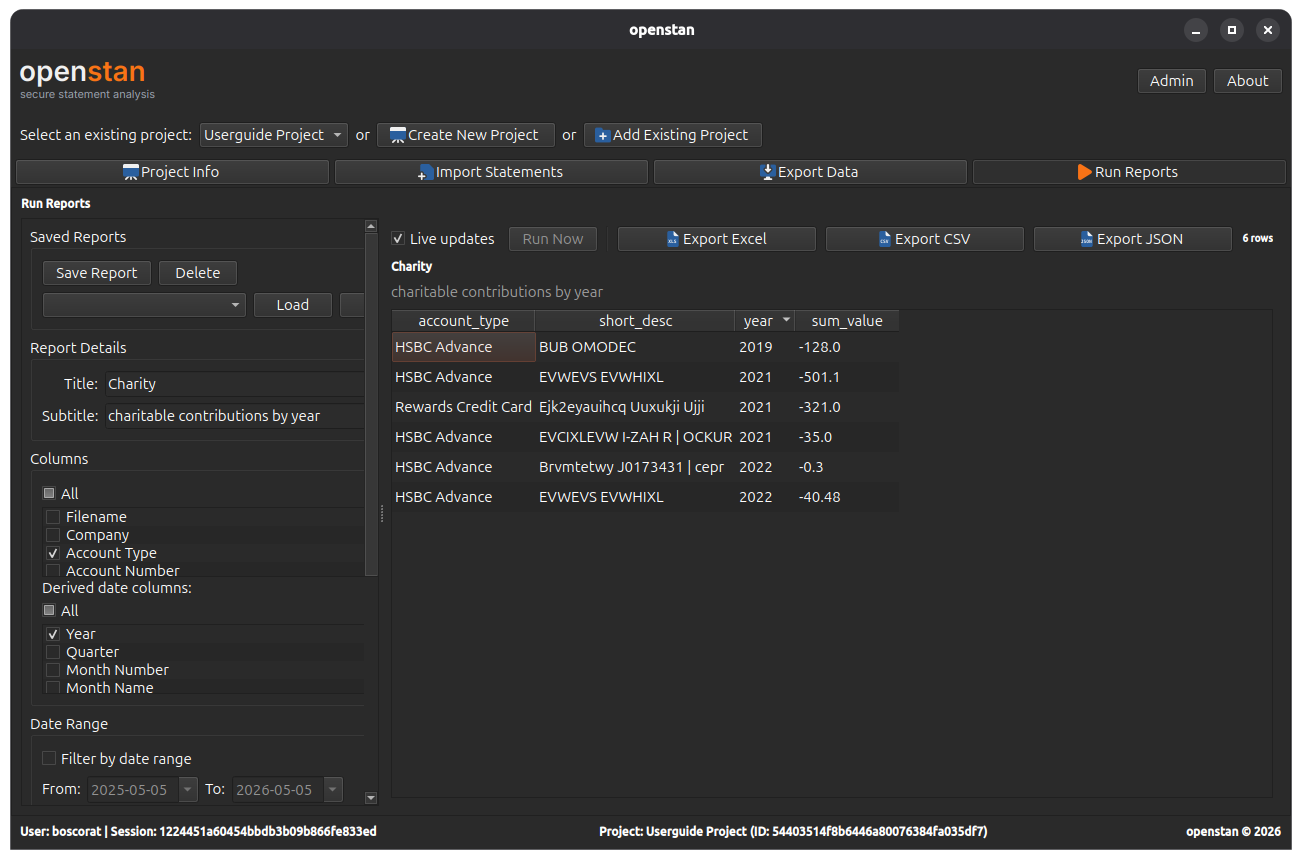
The Run Reports panel (Alt+R) provides a no-code report builder. You can define filters, column selections, groupings, and aggregations, preview the results live, save named reports, and export them to Excel, CSV, or JSON.
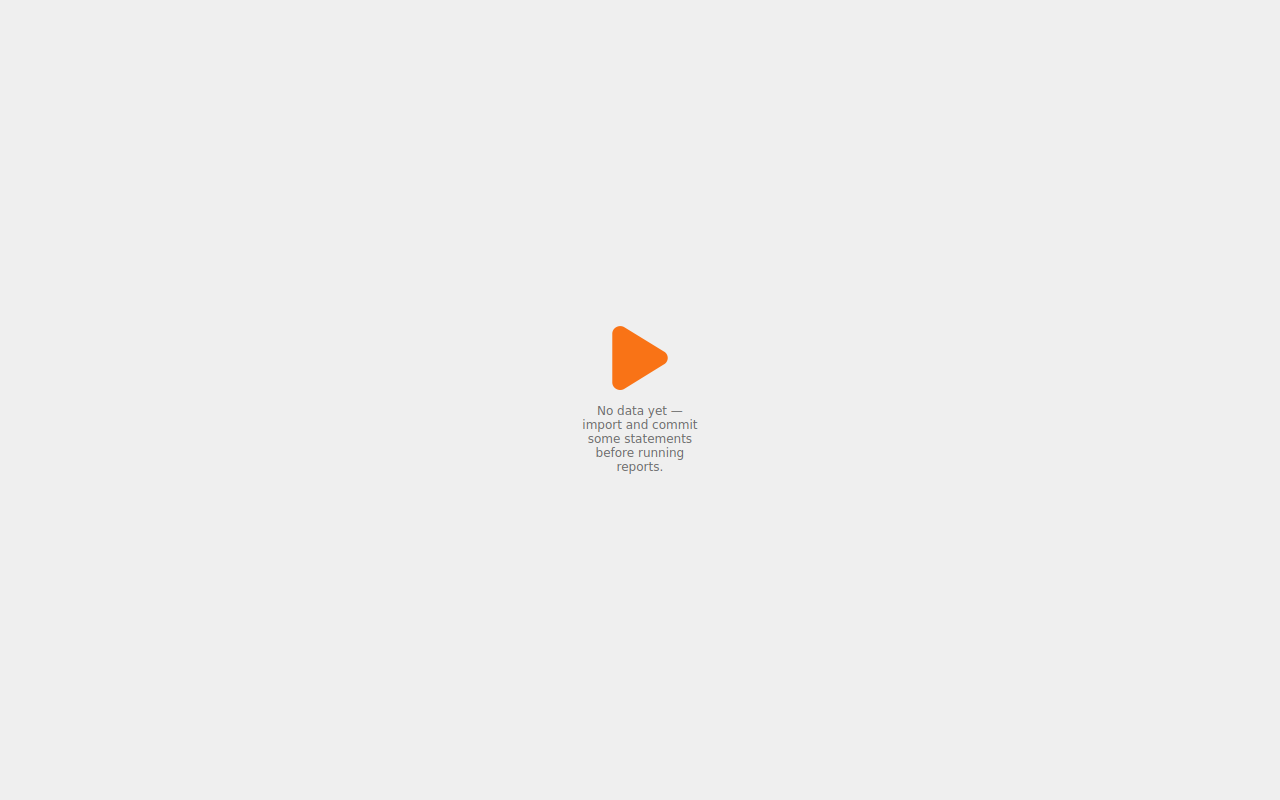
Placeholder state
If no statements have been committed yet, the panel shows a placeholder message. Import and commit at least one batch first.
Panel layout
The panel is split into two panes by a draggable divider:
- Left pane — Report Builder: define and manage reports.
- Right pane — Report Preview: live preview of query results.
Left pane — Report Builder
Saved Reports
At the top of the builder, the Saved Reports group lets you manage named reports.
| Control | Action |
|---|---|
| Report drop-down | Select a previously saved report. |
| Load | Load the selected report's settings into the builder. |
| New | Clear the builder and start a new report from scratch. |
| Save | Save the current builder settings under the name shown in the Report Title field. |
| Delete | Delete the currently selected saved report. |
Report Details
| Field | Description |
|---|---|
| Title | The report title, shown in the preview pane and included in exports. |
| Subtitle | An optional subtitle shown below the title. |
Columns
Select which columns to include in the report output.
- Tick individual columns from the transaction columns list.
- Use the All tristate checkbox at the top to select or deselect all columns at once.
- The Derived date columns section offers computed columns: Year, Month, Quarter, Day of Week, and Week of Year. These are generated from the transaction date and are useful for grouping.
Date Range
- Tick Filter by date range to restrict transactions to a specific period.
- When ticked, From and To date pickers become active.
Filters
Add one or more row-level filters to restrict which transactions appear in the report.
Click Add Filter to add a new filter row. Each row contains:
| Control | Description |
|---|---|
| Column drop-down | The transaction column to filter on. |
| Operator drop-down | The comparison to apply. |
| Value | The value to compare against. For is in and not in operators, a multi-select pop-up lets you choose from the distinct values present in your data. |
Click the × button on any filter row to remove it.
Available filter operators
| Operator | Meaning |
|---|---|
= |
Exact match |
!= |
Not equal |
> |
Greater than |
>= |
Greater than or equal |
< |
Less than |
<= |
Less than or equal |
contains |
String contains (case-insensitive) |
starts with |
String starts with |
ends with |
String ends with |
is in |
Value is one of a chosen set |
not in |
Value is not in a chosen set |
is null |
Value is missing/empty |
is not null |
Value is present |
Group By
Select columns by which to group the output. Only columns that are selected in the Columns section are available here. Grouping is typically used together with Aggregations.
Aggregations
Define summary calculations over grouped data.
Click Add Aggregation to add a new aggregation row. Each row contains:
| Control | Description |
|---|---|
| Column drop-down | The column to aggregate. |
| Function drop-down | The aggregation function to apply (sum, count, mean, min, max, and more). |
| Alias field | An optional name for the output column (e.g. Total Amount). |
Right pane — Report Preview
Toolbar
| Control | Description |
|---|---|
| Live updates checkbox | When ticked (default), the preview re-runs automatically whenever any builder setting changes. |
| Run Now button | Manually run the report. Available when Live updates is off. |
| Export Excel / CSV / JSON | Export the current results. These buttons are hidden until results are available. |
| Row count label | Shows the number of rows in the current result set. |
Preview table
Results are displayed in a sortable table. Click any column header to sort by that column; click again to reverse the sort order.
The report Title and Subtitle are shown above the table.
States
| State | What is shown |
|---|---|
| No results yet | A placeholder label prompting you to configure the report and run it. |
| Results available | The data table with title, subtitle, and row count. |
| Query error | A red error label with the error message. |
Tips
- Use Group By + Aggregations together to produce summary reports (e.g. total spend by category per month).
- Turn off Live updates if your dataset is large and you want to make several changes before running.
- Save frequently used report configurations with descriptive names so you can reload them quickly.