Project Management
The project management controls are always visible at the top of the application window, below the title bar.
Project selector bar

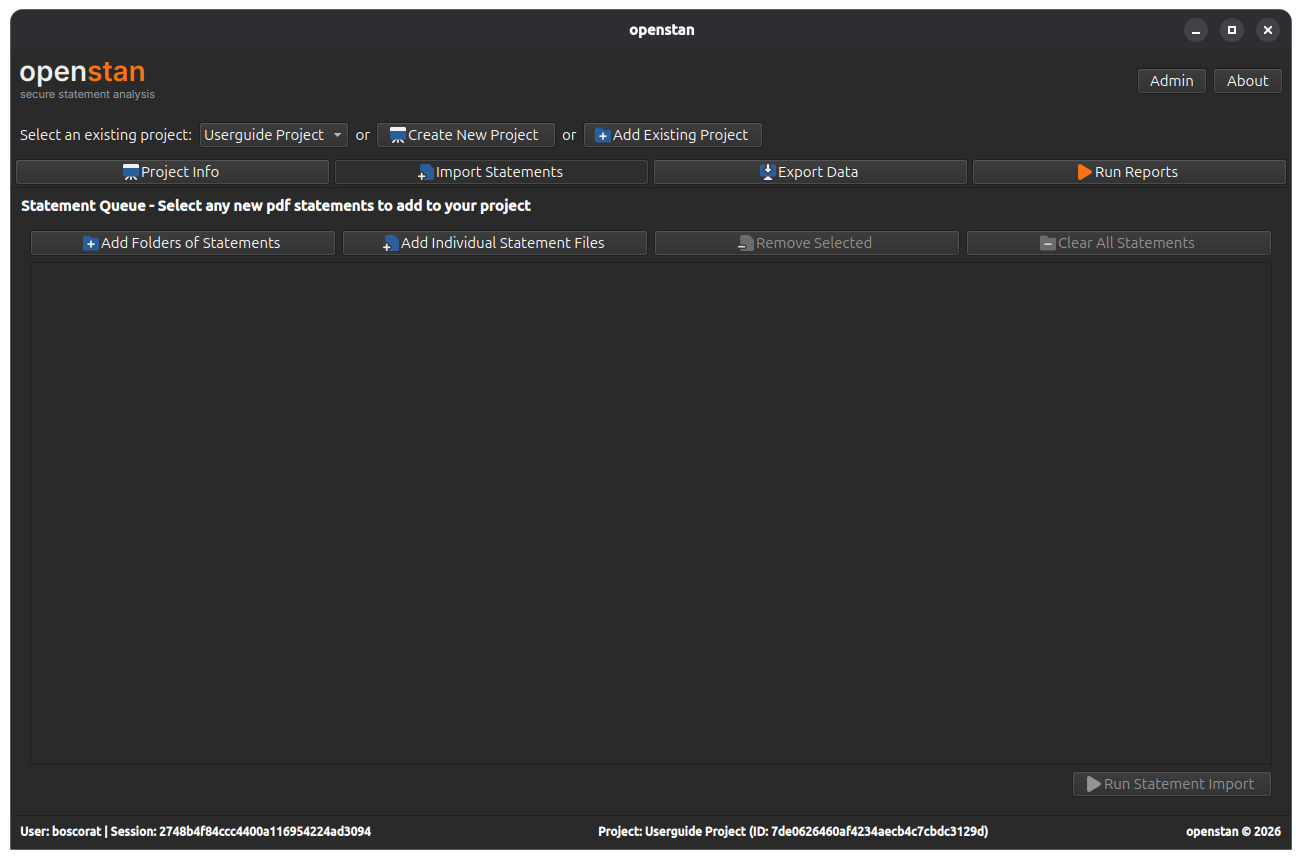
The project selector bar contains three controls:
| Control | Purpose |
|---|---|
| Select an existing project drop-down | Switch between projects you have previously registered. |
| Create New Project | Open the project creation wizard to scaffold a brand-new project folder. |
| Add Existing Project | Register an existing project folder (created on another machine, or after moving files). |
Switching projects in the drop-down immediately updates all panels to reflect the selected project's data.
Creating a new project
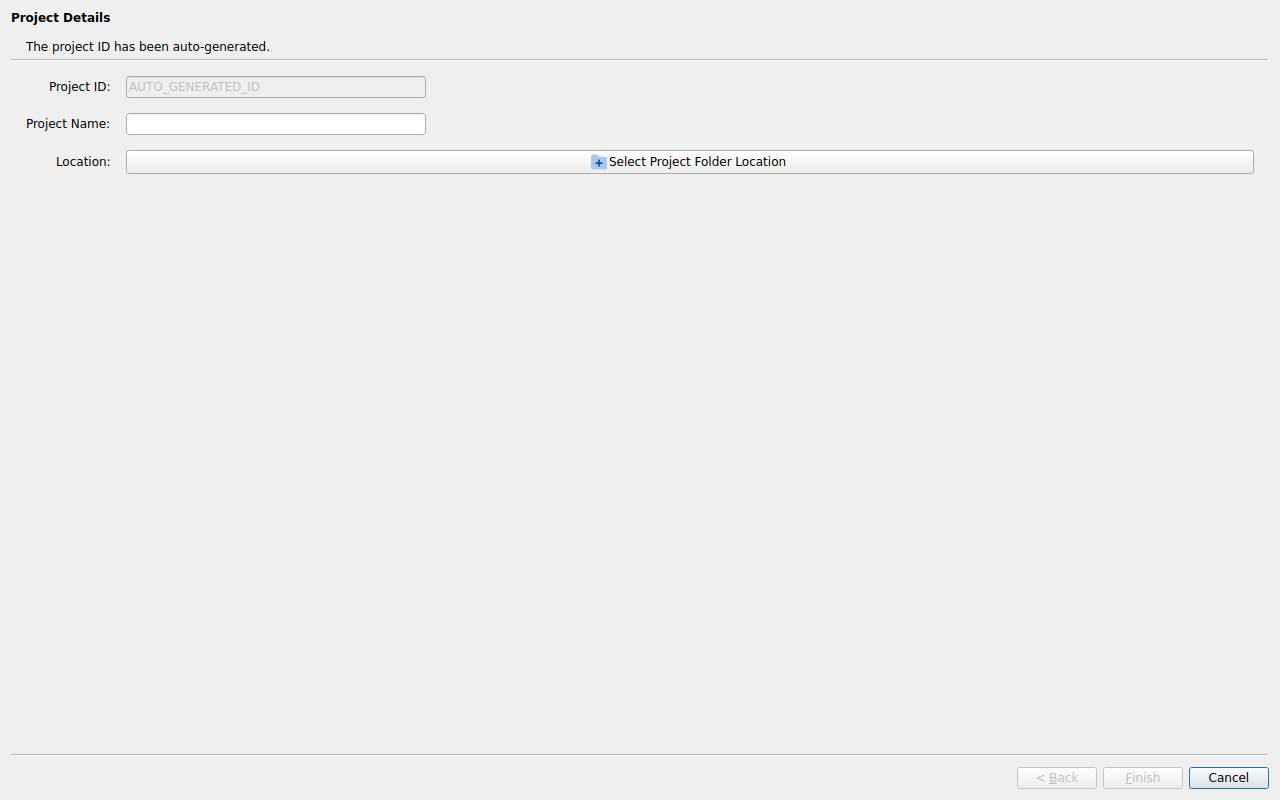
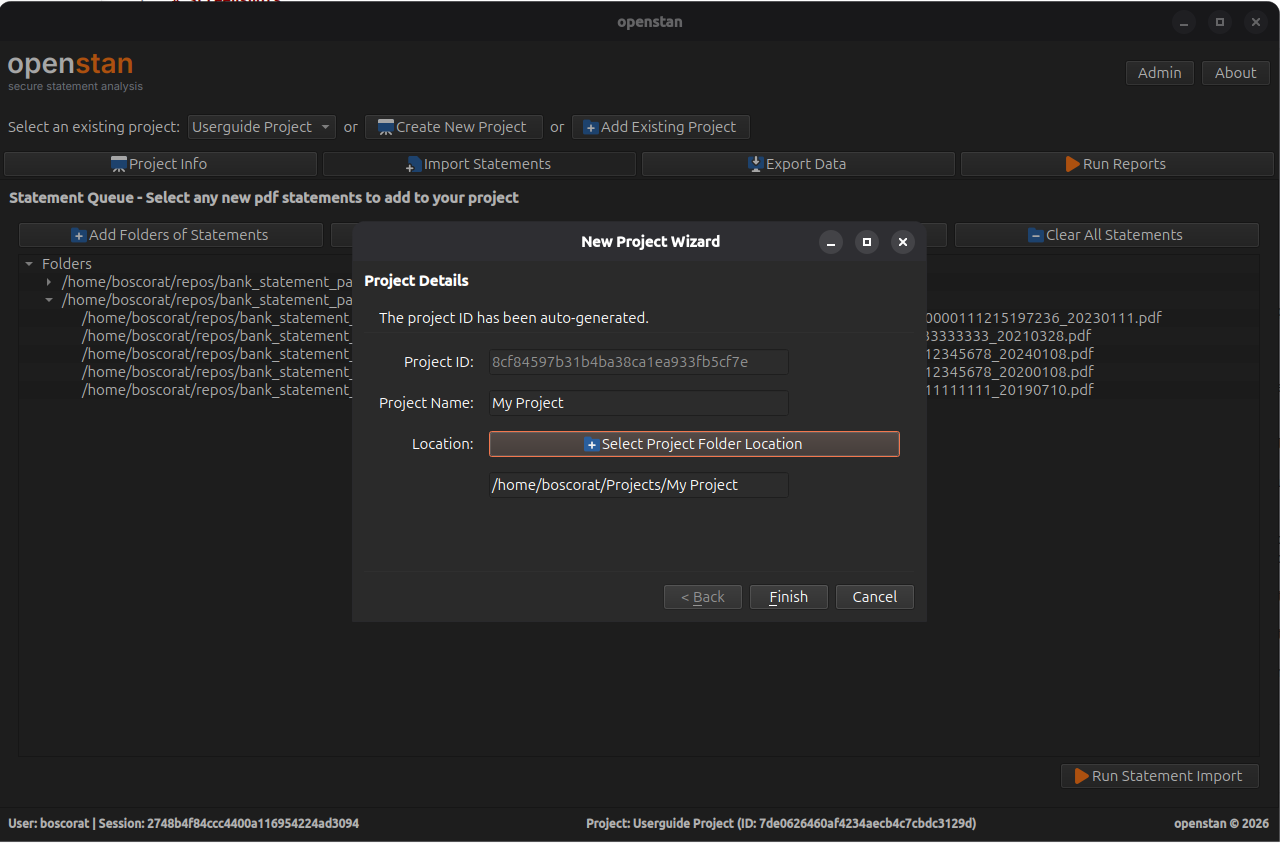
Click Create New Project to open the project wizard.
| Field | Description |
|---|---|
| Project ID | A unique identifier generated automatically. Read-only. |
| Project Name | A human-readable name for the project (e.g. Personal Finances 2024). |
| Project Location | The parent directory in which the project sub-folder will be created. Click Choose Folder to browse. The sub-folder is named after the project name. |
Click Finish to create the project. openstan calls the bank_statement_parser library to scaffold the project folder structure, then registers the new project in the application database and selects it automatically.
What gets created on disk
The project folder contains a config/ directory (with import and export TOML configuration files), a statements/ directory, and a project.db SQLite database managed by bank_statement_parser. See the bank_statement_parser project structure guide for full details.
Adding an existing project
Click Add Existing Project to open the wizard in "existing" mode.
| Field | Description |
|---|---|
| Project ID | Generated automatically (a new ID is assigned in the openstan UI database). |
| Project Name | Pre-populated from the folder name; you can edit it. |
| Project Location | Navigate to the existing project folder itself (not its parent). |
Click Finish to register the project. No files are modified on disk.
Navigation bar
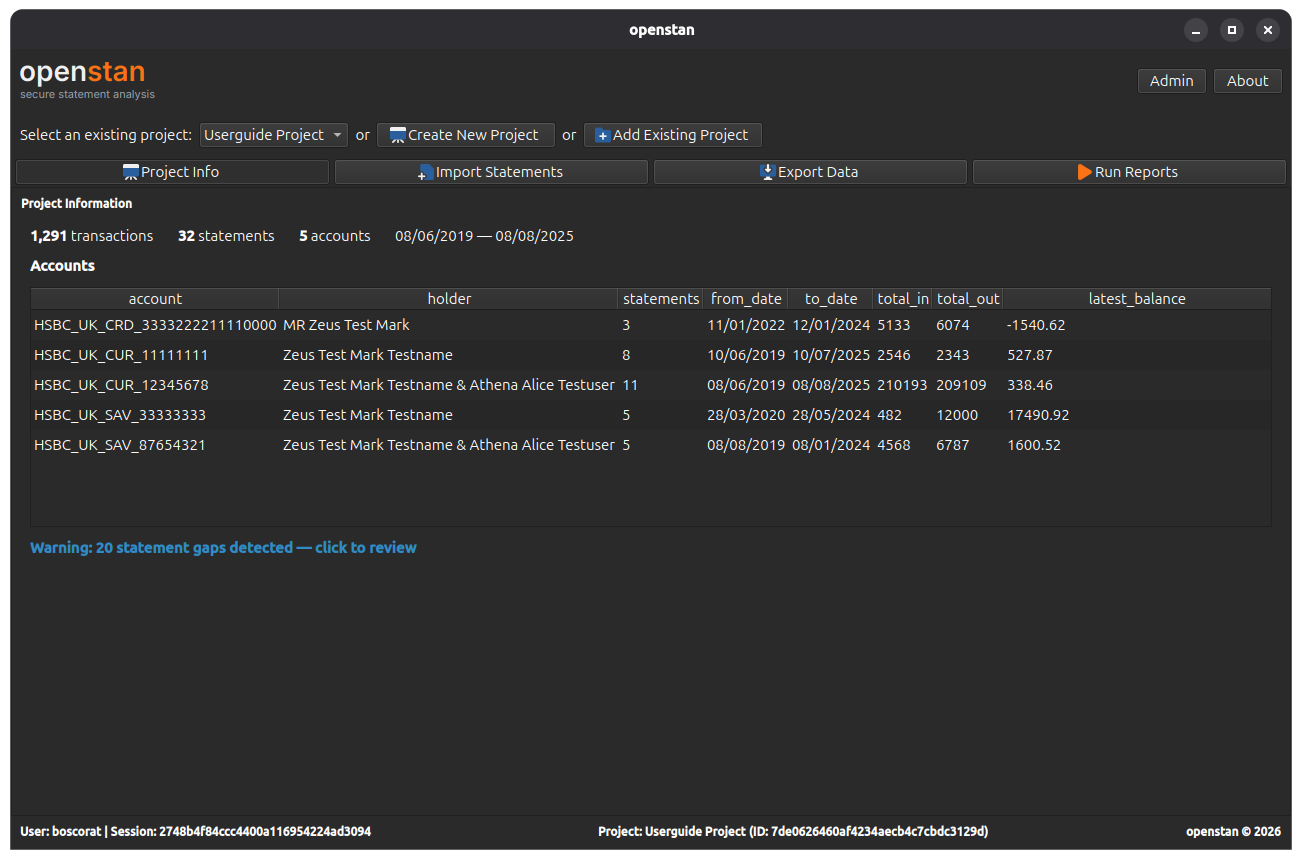
Once a project is selected, the navigation bar appears below the project selector:

| Button | Shortcut | Panel |
|---|---|---|
| Project Info | Alt+P |
Summary statistics and account breakdown |
| Import Statements | Alt+I |
Statement queue and import runner |
| Export Data | Alt+E |
Standard and advanced data exports |
| Run Reports | Alt+R |
No-code report builder |
Project Info, Export Data, and Run Reports are always visible once a project is selected, but display a placeholder message until at least one batch has been committed to the project database.
Footer
The footer bar at the bottom of the window shows contextual session information:
- Left: Current OS username and session UUID.
- Centre: Active project name and ID.
- Right: Application copyright notice.
The Admin dialog is accessible via the Admin button in the top-right corner of the title bar.